4. Invoices & Billing
The Invoices & Payments module allows you to track and manage the financial aspect of your fleet's operations, including settling balances with the Logistix platform.
Financial Overview
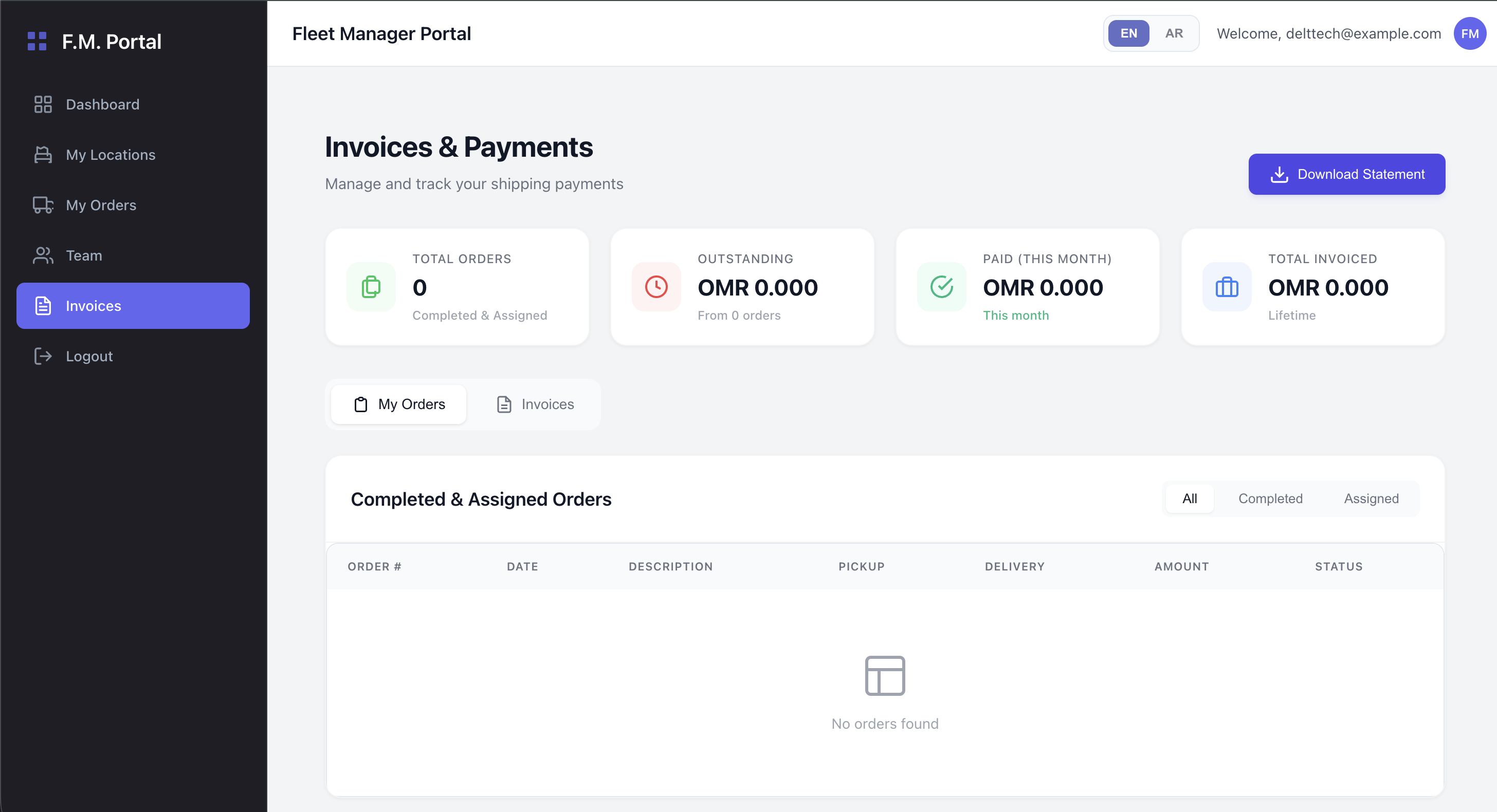
At the top of the page, four stat cards give you a quick financial summary:
- Total Orders: Count of all completed and assigned orders.
- Outstanding: The total unpaid balance you owe to the platform based on recent orders.
- Paid (This Month): The total amount you have successfully paid this month.
- Total Invoiced: The lifetime financial volume of your fleet.
Dual-Tab Interface
The module is split into two primary views:
1. My Orders Tab
This tab displays a detailed log of all orders that factor into your billing. It filters out drafts and cancellations, showing only the orders that have been successfully completed or are currently assigned. You can review the pickup/delivery locations and the calculated amount for each specific trip.
2. Invoices Tab
This tab lists formal invoice transactions generated by the Logistix administrators.
- Invoice Types: You may see different types of billing arrangements:
- Monthly Contract: A fixed periodic bill.
- Per Order: A consolidated bill based on individual order volumes.
- Manual: Custom invoices generated by admins.
- Invoice Statuses: Invoices move through statuses such as
Unpaid(Sent),In Review(Payment submitted but pending approval), andPaid.
Acknowledging Payments
When you receive a new invoice (Status: Sent), you must submit proof of payment through the portal:
- Locate the unpaid invoice in the Invoices tab.
- Click the Acknowledge Payment button.
- Select and upload your bank transfer receipt or payment confirmation. The system accepts
.pdf,.png, and.jpgfiles. - The invoice status will change to In Review while an admin verifies the receipt.
Viewing and Printing Invoices
To view the full details of a bill:
- Click the View Invoice (eye icon) button next to any invoice.
- A modal will open displaying the full invoice document.
- If the invoice includes a PDF attachment from the admin, it will be rendered directly in the modal. Otherwise, a standard system-generated HTML invoice will be shown.
- You can use the Download Original or Print / Save PDF buttons to save a copy for your own financial records.