2. Store Management
The Stores module allows you to manage the physical locations associated with your fleet, such as restaurant branches, warehouses, or retail outlets.
Viewing Locations
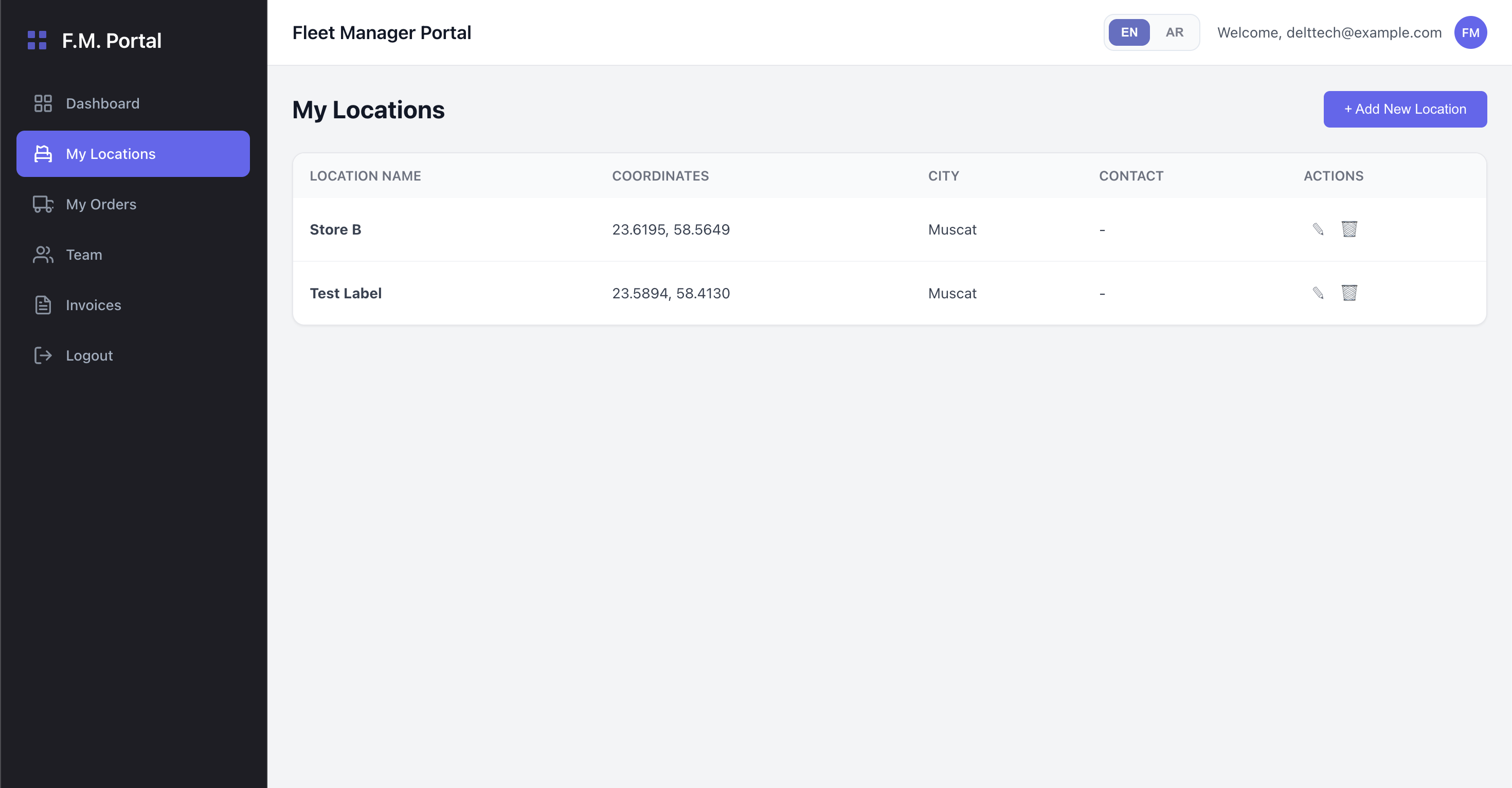
The Stores table provides a clear overview of all your registered branches. For each location, you can view:
- Location Name: The custom label assigned to the store.
- Coordinates: Precise GPS Latitude and Longitude.
- City: The geographic region of the store.
- Contact Details: The assigned contact person's name and phone number.
Adding and Editing Stores
To ensure accurate pickups, maintaining up-to-date store details is crucial.
- Add a Location: Click the + Add Location button in the top right corner.
- Edit a Location: Click the pencil icon (
✎) next to any existing store.
Store Details Modal
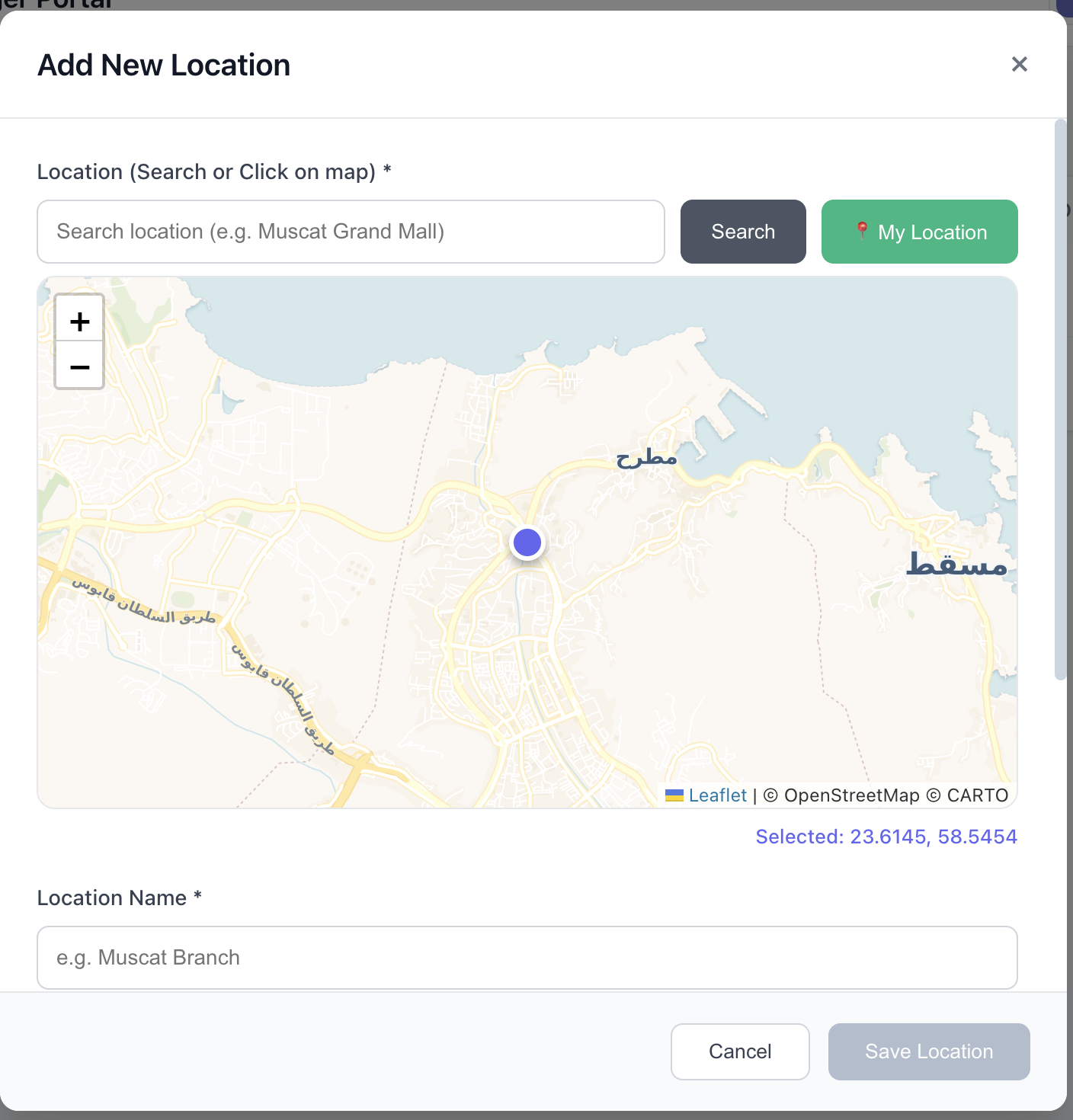
When adding or editing a store, you will be prompted to provide:
- Location Label: (e.g., "Downtown Branch")
- Address & Coordinates: Setting the exact Latitude and Longitude ensures that drivers are routed accurately.
- Contact Information: A dedicated phone number and name for the location manager to facilitate smooth pickups.
[!NOTE] Permissions Required: Adding, modifying, or deleting stores requires your account to have the
stores:editpermission. If your button is disabled, please contact a Super Admin or Fleet Owner to adjust your access rights.