5. Team Management
As a fleet owner or primary manager, you can use the Team module to add and manage additional fleet_admin accounts for your staff, such as dispatchers, accountants, or shift supervisors.
Managing Your Team
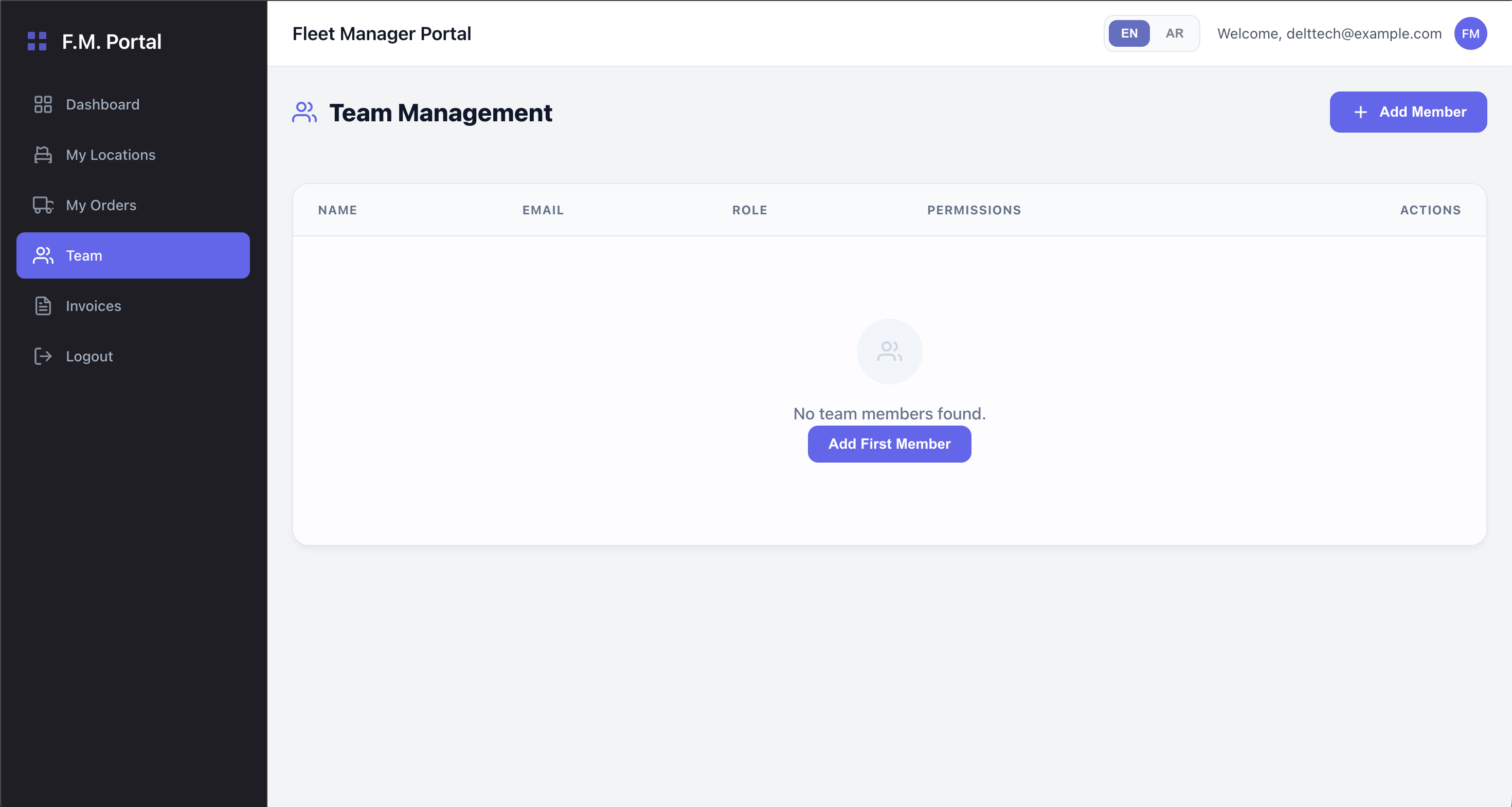
The Team page provides a list of all administrative users who have access to your fleet's portal.
Adding a New Team Member
- Click the Add Member button.
- Provide the member's details:
- Name & Email
- Phone Number (prefixed with
+968by default) - Password
- Set Permissions: See the section below for details on configuring access.
- Click Save. The new member can immediately log into the Fleet Portal using these credentials.
Editing or Removing Members
- To update a member's contact information or adjust their access rights, click the Edit (
✎) icon next to their name. - To completely revoke a member's access to the portal, click the Delete (
🗑) icon.
Granular Permission Control
To ensure security and proper delegation of duties, you can configure granular permissions for each team member across five specific modules:
- Dashboard: Determines if the member can view the live tracking map and statistics.
- Bookings: Controls access to viewing orders and creating new dispatch requests.
- Invoices: Highly recommended to restrict this to accounting staff. Controls who can view financial summaries and upload payment receipts.
- Stores: Controls who can view, add, or modify the physical store locations.
- Team: Controls who can view the staff list and add new administrators.
For each module, you can select whether the member has View access, Edit access, or no access at all. Ensure you regularly audit these permissions to maintain operational security.